9 Property Editing
Property tables across the UI share certain characteristics.
9.1 Common features
Whether it is the Universes tab or the Views category, you can re-arrange the columns. To do so, click on the Options menu button at the top right of the table and drag the name of the column to the desired place. The Reset button at the bottom of the list will set the columns back in the default order, width and in some cases, selection.
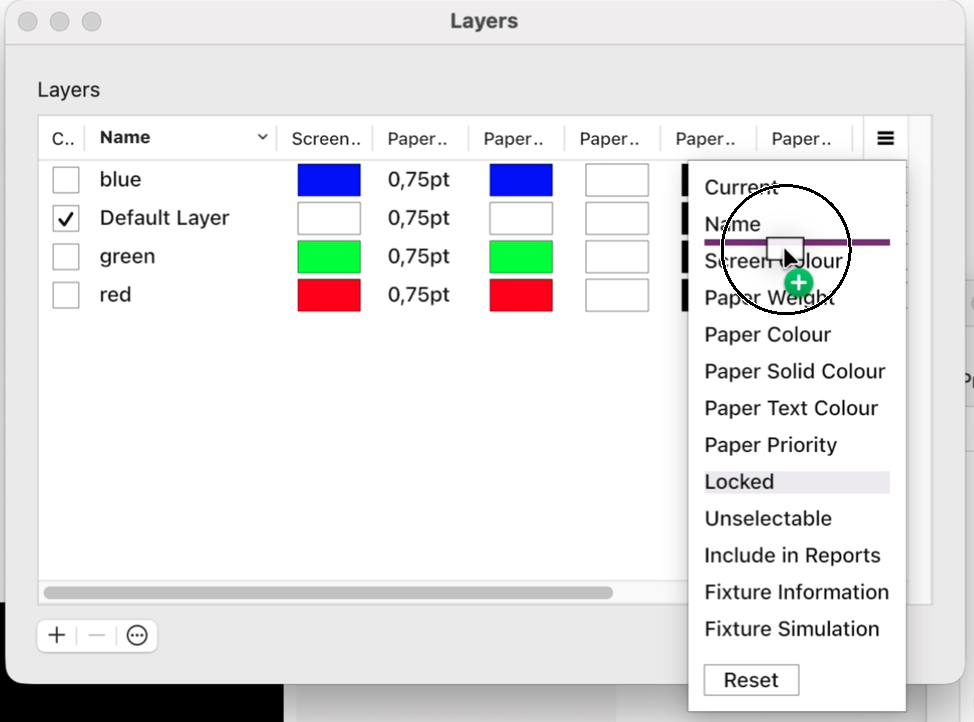
Ascending or descending order can be toggled by clicking on the column header.
For multiple selection of cells, the following options are available:
- In a column, click on the first cell and scroll down. Press and hold the Shift key, then click on the last cell of the range you want to select.
- In a column, click on the first cell. Hold Shift and press the Up or Down Arrow key to extend the selection to the last cell of the range.
- In a column, click on one cell. Hold Ctrl key (on Windows) or Cmd key (on Mac) while clicking on additional cells to add them to the selection.
The Left and Right Arrow keys move the selection to the next or previous column.
9.2 Grouped views
It is possible to copy and paste content, either within the same column, or from one column to another. Copy and paste is also integrated with the system clipboard. Any data you copy from a property table can be pasted into other applications such as text editors or spreadsheet applications and vice versa.
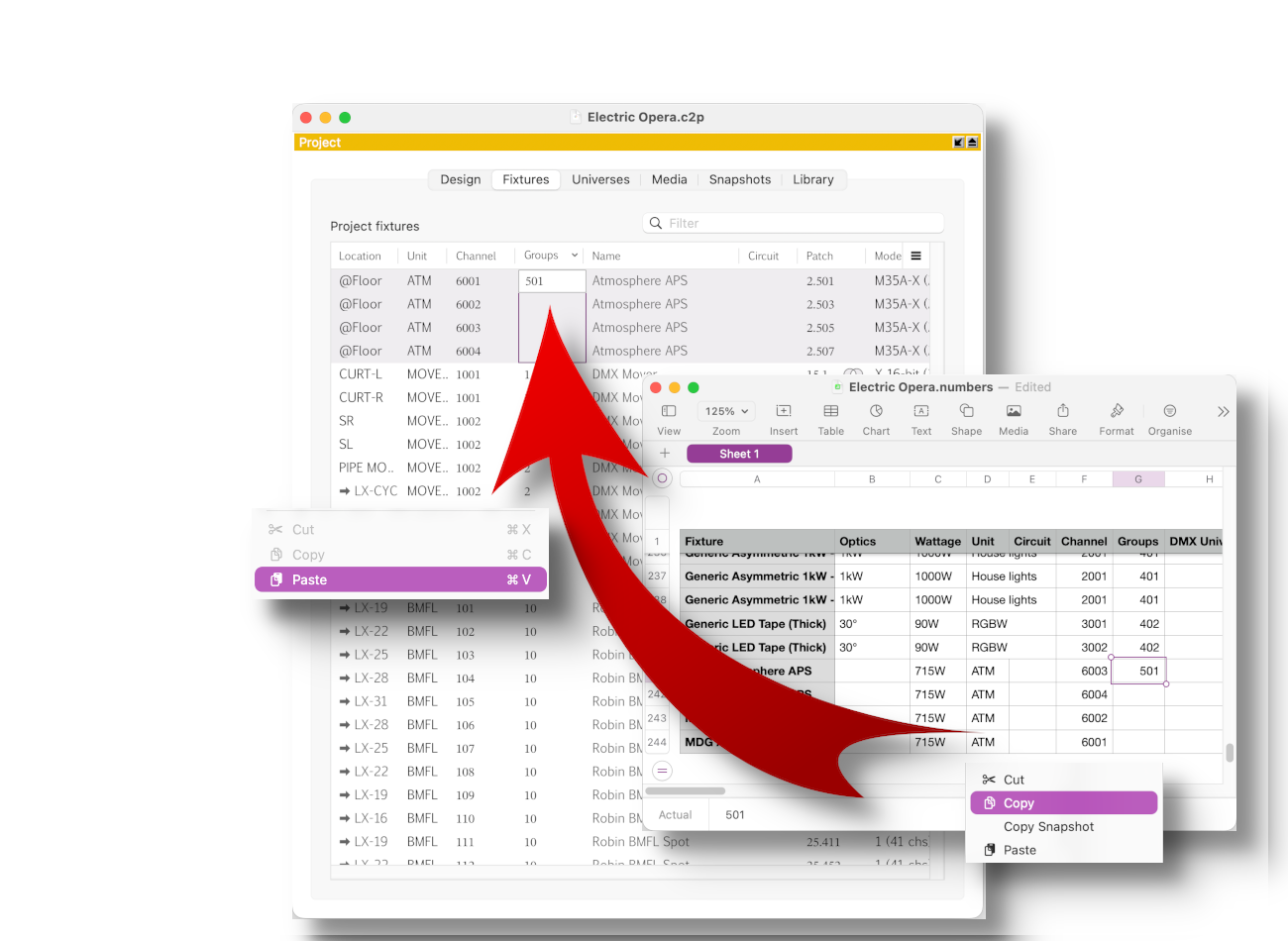
In the text below, we are using the Layers category as an example.
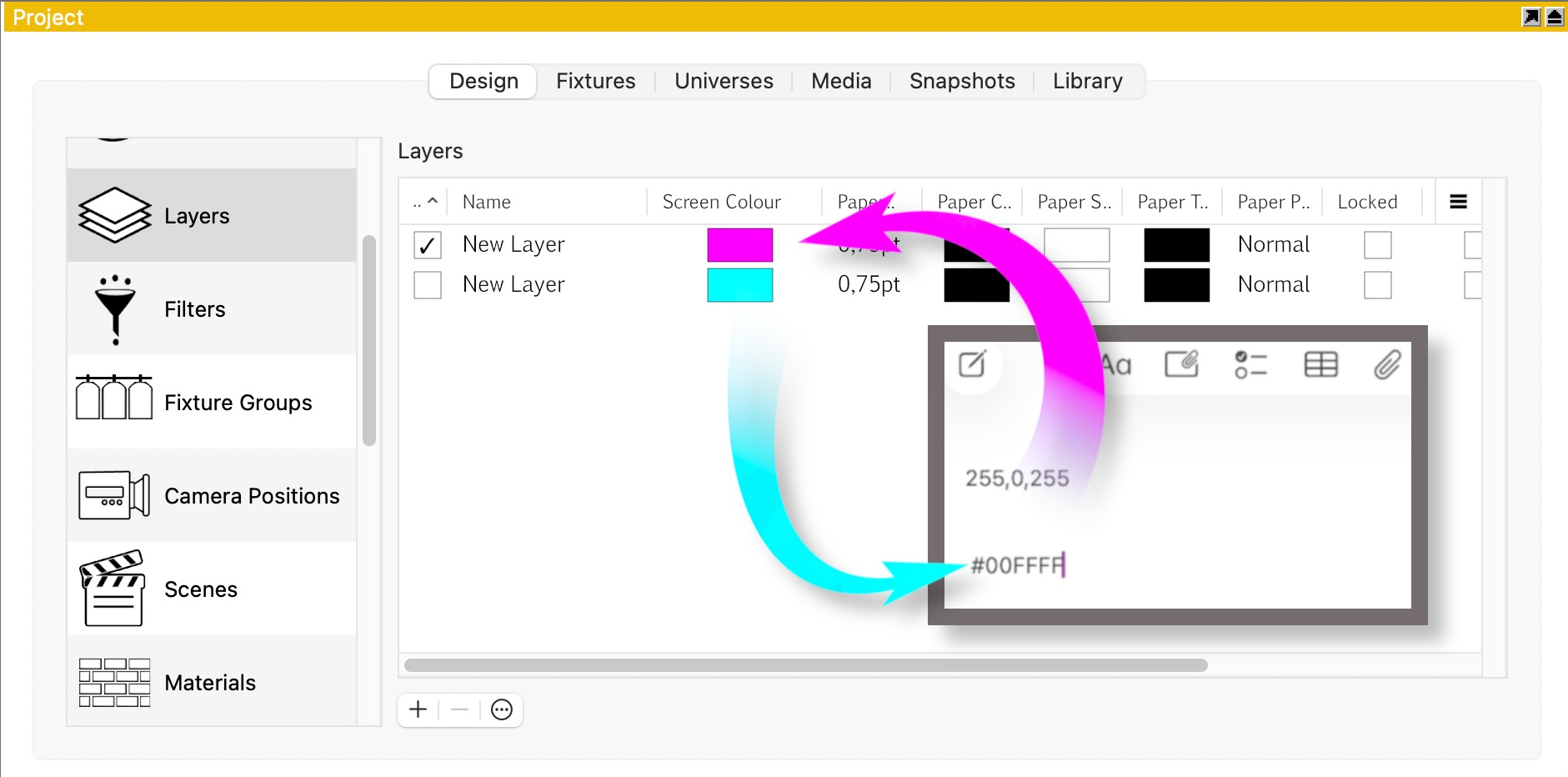
Let’s say that you have imported a .dwg model with a large number of layers and you want to copy the colours from the Screen colour column to the Paper colour column.
- Multi select all rows of the Screen colour column.
- Press Ctrl + C (on Windows) or Cmd + C (on Mac) to copy.
- Use the Right Arrow key to move to the Paper colour column.
- Press Ctrl + V (on Windows) or Cmd + V (on Mac) to paste.
When you paste the colour into another application, it is converted to text. Hexadecimal or RGB values can be used to copy a colour from another application and paste it into layers.
All layers within a group can be selected by holding down the Alt key (on Windows) or Option key (on Mac) and clicking on a cell.
9.3 Fixtures tab and Fixtures Details window
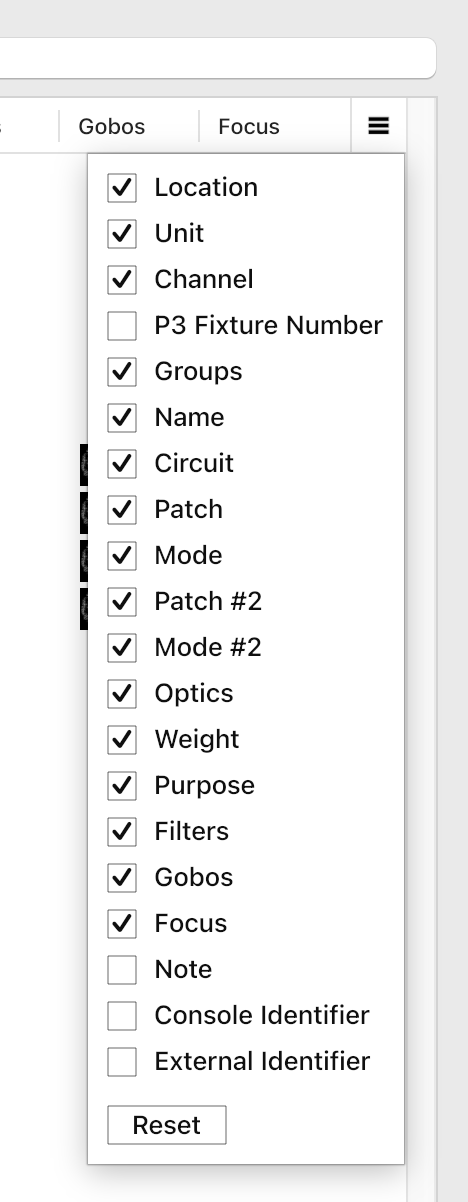
The Fixtures tab, as well as the Fixtures Details window, allows you also to choose which columns are displayed. When you click on the Options menu button at the top right of the table, a check box in front of the colum’s name is visible.
Bulk editing allows you to apply the same value or increment values across multiple selected cells. After you have selected multiple cells, double click on the highlighted cell or press Enter to type a value. Depending on the column, a + or = sign may appear inside the cell. The + sign indicates that the values will be incremented. The = sign indicates that the same value will be applied to all cells. To switch between + or = and after you have typed a value, hold down the Shift key before pressing Enter.
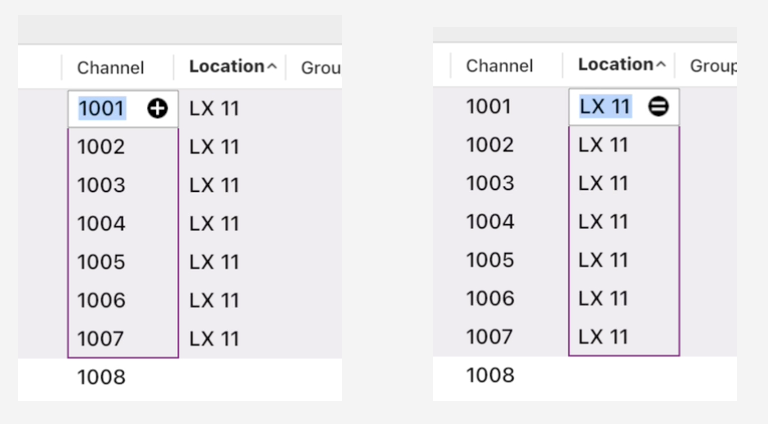
When editing properties, the next available value will be suggested. You can press Enter if you agree or Backspace if you want to add another value. This applies to cells under the Channel, Unit, Circuit and Patch columns.
Bulk editing also means that you can change the mode of several fixtures at once or patch a selection of fixtures.
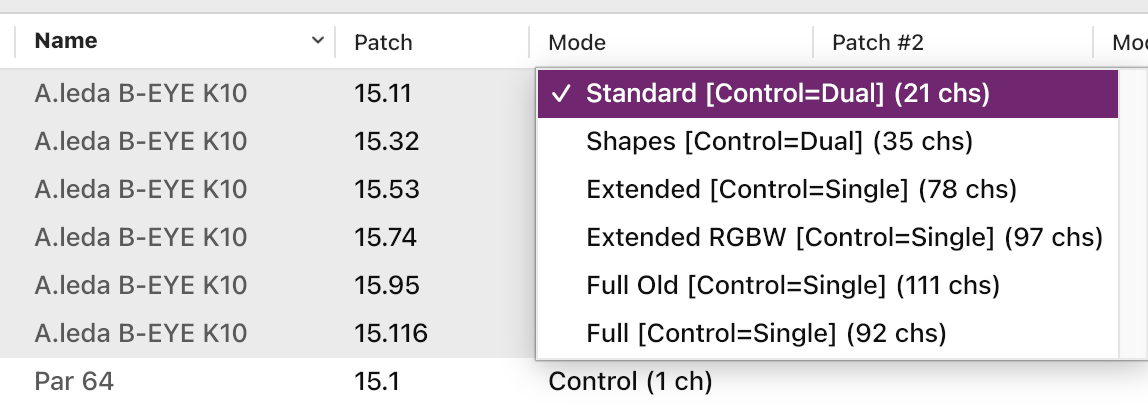
As demonstrated above, the Fixtures tab and the Fixtures Details window are flexible spaces, where you can perform all the different sequential commands, as well as edit data with the ease of a spreadsheet.
Important: When you first open the Fixture Details window, all rows are selected and you can use the Left and Right Arrow keys to move between columns. The order also depends on the order in which the fixtures were selected.