18 Library Tab
Here you can find content to drag and drop into your design.
18.1 Installation and Updates
The library is a separate download from Capture itself. The first time you access the library tab you will need to download and install the library. This is done from within the management view, which opens automatically if you don’t have a library installed.
The Download button downloads and automatically installs the latest library directly from our website.
The Install Library.. button lets you select a library file to install that you have downloaded yourself from our website.
If you need to update the library at a later point you can always open the library management view by clicking on the cog wheel button at the top left of the Library Tab. Since the library is being updated almost daily, it is a good practice to periodically download and install the latest.
Technically the installation of a library simply means copying the library file to the correct location. On macOS this is ~/Library/Application Support/Capture 2026 and on Windows it is C: (name) .
18.2 Content and Support
If you discover any issues with or are missing something in the library you can reach out to us at library@capture.se. Library support is included with every Capture licence.
18.2.1 Student Edition Library
The purpose of the Student Edition is to allow students to learn the principles of making lighting designs with Capture. In order to be able to provide the Student Edition for free, the library is limited to around 50 fixtures that are representative of the fundamental types of technology used by the industry.
18.3 Built-in
18.3.1 Distance
Distance measurements can be used both to measure distances and serve as spacers or construction geometry by setting a specific distance.
Double click on the endpoints of a distance measurement to move and snap them to specific points.
In design views in Plot mode it is also possible to double click on the distance annotation and adjust its position (when plot adjustments are enabled).
The Distance property shows the current distance of the measurement. It serves both as an indication and as a way of setting a specific distance.
The plot annotation Visible property makes it possible to hide the distance annotation on plots.
The plot annotation Precision property controls how detailed the distance information is shown on plots.
18.3.2 Angle
Angle measurements can be used both to measure angles as well as server as construction geometry for known angles.
Double click on the endpoints of an angle measurement to move and snap them to specific points.
In design views in Plot mode it is also possible to double click on the angle annotation and adjust its position (when plot adjustments are enabled).
The Angle property shows the current angle of the measurement. It serves both as an indication and a means of setting a specific angle.
The plot annotation Visible property makes it possible to hide the angle annotation on plots.
18.3.3 Line
Lines can be used to indicate many things, such as for instance the center line on stage.
Double click on the endpoints of a line to move them.
The Line style property allows for different choices of stroke style.
18.3.4 Ruler
Rulers are good for aiding the reader of a plot judge the size of objects and distance between them.
Double click on the endpoints of a ruler to move them.
The Segment length property defines the sample point intervals.
The Alignment property defines the location of the 0 point.
18.3.5 Image
Images are good for creating reference underlays in designs. They are meant to be used in Wireframe and Plot mode in design views, and are invisible in Live mode in design views.
By default they show Capture’s application icon, but the image can be changed using the Image property.
Use the Width and Height properties to define the physical size of the image in your design.
Importing PDF or DWG files containing images using the Import Model commands will also produce Image objects in your design. It is in these cases that the Drawing unit property is used.
18.3.6 Cable
Cables can be used to add cable run information to plots and reports.
Double click on the endpoints of a cable to move them. When a single endpoint is selected, the Split command can be used to add extra points. Extra points can be removed using the Delete command.
The length of a cable run is calculated from its 3D distance plus any Cable extra added. It is then rounded up to the nearest multiple of the value specified by the Cable rounding property.
The Cable start and Cable end properties are shown at the end and start of the cable on plots.
In reports, cables are grouped by Cable type and Distance.
18.3.7 Point Snapper
Point snappers are widgets that make it possible to create object groups that snap in custom ways. Two point snappers snap to eachother like magnets, without altering the orientation of the snapping object.
The Match property works like a filtering mechanism - only snappers with the same Match property value will snap to each other.
18.3.8 Directional Snapper
Directional snappers are identical to Point Snappers, but also orient the snapping object so that it lines up with the other directional snapper.
Each library truss item in Capture contains an invisible directional snapper at each end of the truss with a Match property value of “Truss”. This means that you could build object groups with directional snappers inside that snap to library trusses.
There is also the option to add more Axial Steps that allow for more ways of axial alignment. In the case of triangular truss pieces for example, each end contains a directional snapper with 3 axial steps. This results in truss pieces snapping together in the correct way, even if the orientation of each piece was different.
18.3.9 Line Snapper
The line snapper is a widget that Point Snappers and Directional Snappers snap to.
Each library truss item in Capture contains a line snapper along its main tubes with a Match property value of “Fixture”. As a result, setting the Match property to “Fixture” means that fixtures will snap to it.
18.3.10 DMX Mover
DMX Movers can move objects across a predefined range along the X Y Z axis.
Objects are associated with DMX Movers by setting their Motion fixture property. The names when making the selection come from the DMX Movers’ Unit property. It is also possible to drag and drop objects on DMX Movers - see the Manipulation section of Design Views for more details.
When a group is associated with a DMX Mover, all objects in that group will automatically behave as if they were too.
Movers can be configured to operate on only one axis, for example Y, so that the objects associated with it only move up and down. This is done by setting the X From/To and Z From/To properties of the DMX Mover to 0. You may also want to change the Mode of the DMX Mover to choose between 8-bit or 16-bit resolution and conserve DMX channels. See the DMX Movers section of the DMX Tables appendix for more information.
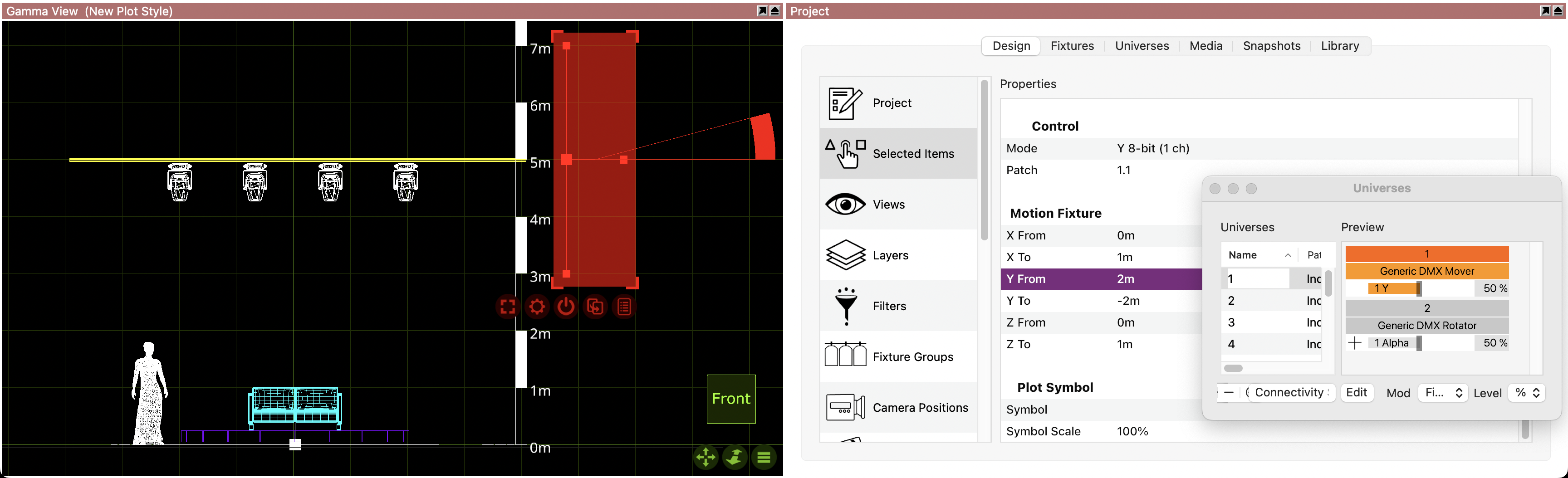
The From and To property defines the range, but it needs to contain the value 0. In the example below, the Lx bar is set at 5 meters, whereas the range of the mover is set from 2 to -2 meters. Setting the range from 1 meter to 3 for example, wouldn’t be possible, since the value does not pass 0.
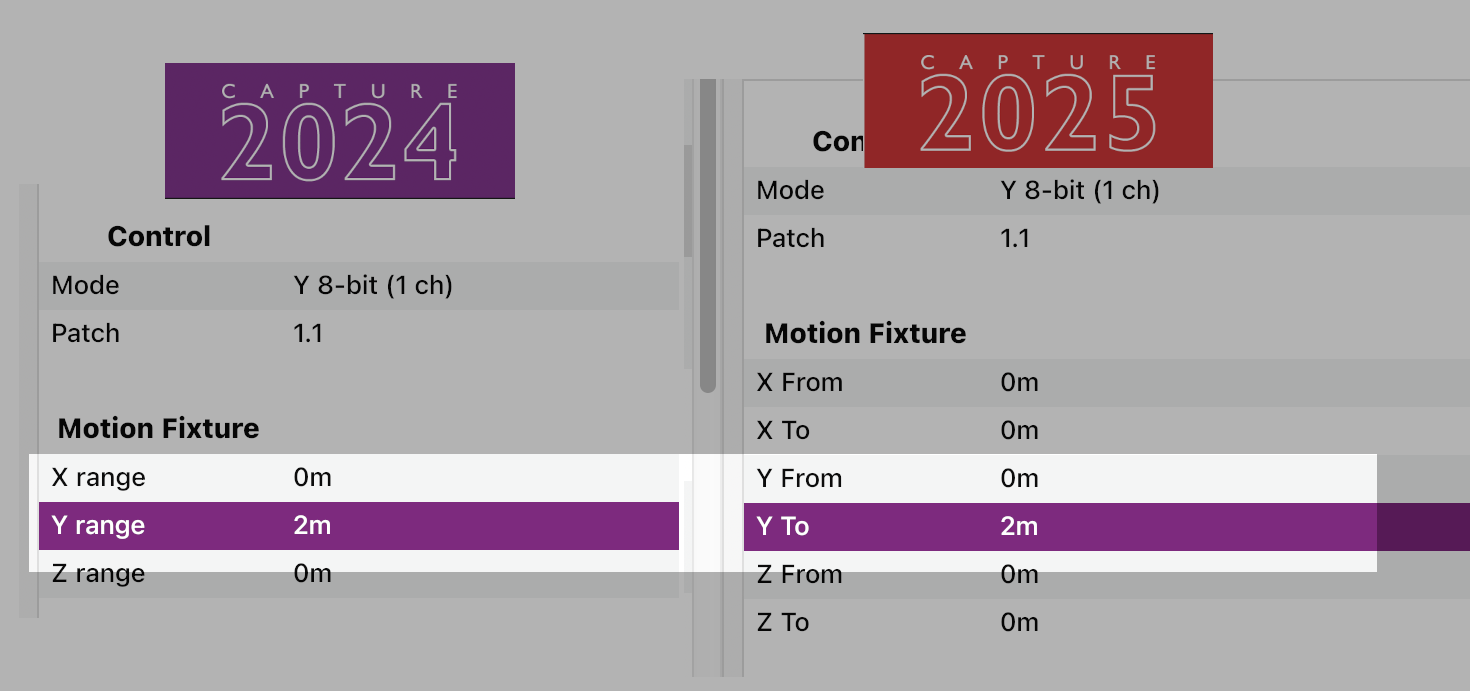
Opening a project that was created with version 2024 or older, where only the Range property was available, the From value will be set to 0 and the To value will inherit the Range value.
LIMITATION: Although you can link DMX Movers and Rotators together to create more complex movements, you can’t have more than 20 units in the same chain.
18.3.11 DMX Rotator
DMX Rotators can be used to rotate objects around an axis and within a specific range.
Generally, the same principles as for DMX Movers apply.
Continuous rotation is available in the DMX modes that include a speed channel.
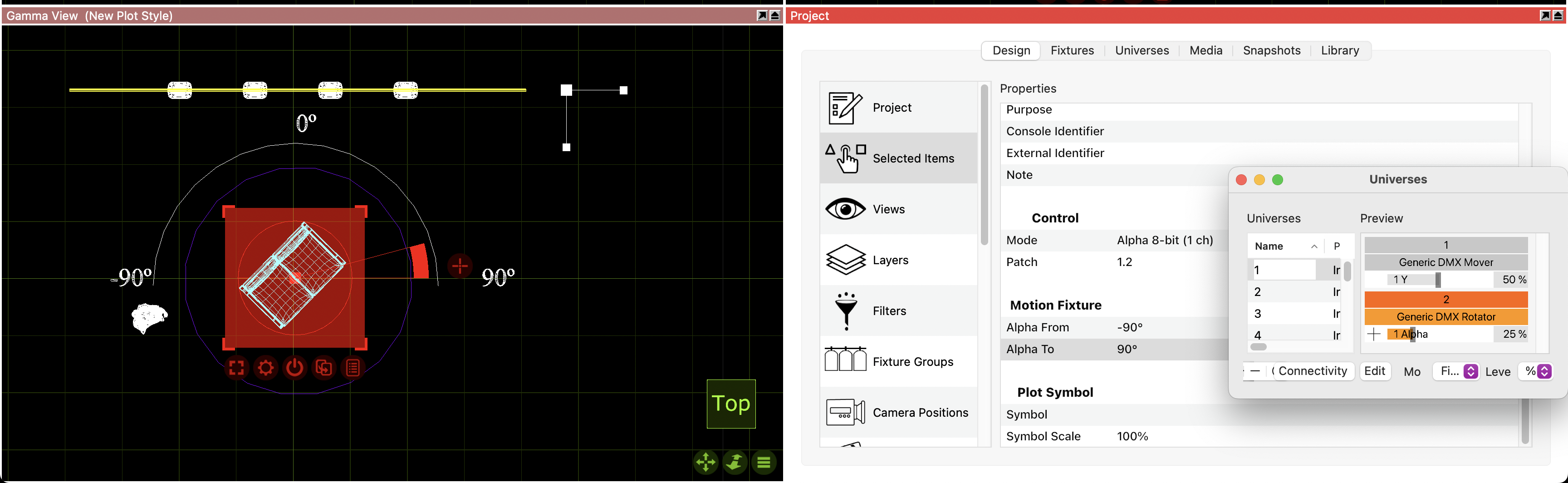
The Alpha From** and Alpha To property defines the range of the rotation of the object, but it needs to contain the value 0. In the example below, the revolving stage is set from -90º to 90º. Setting the range from 10º to 90º for example, wouldn’t be possible, since the value does not pass 0.
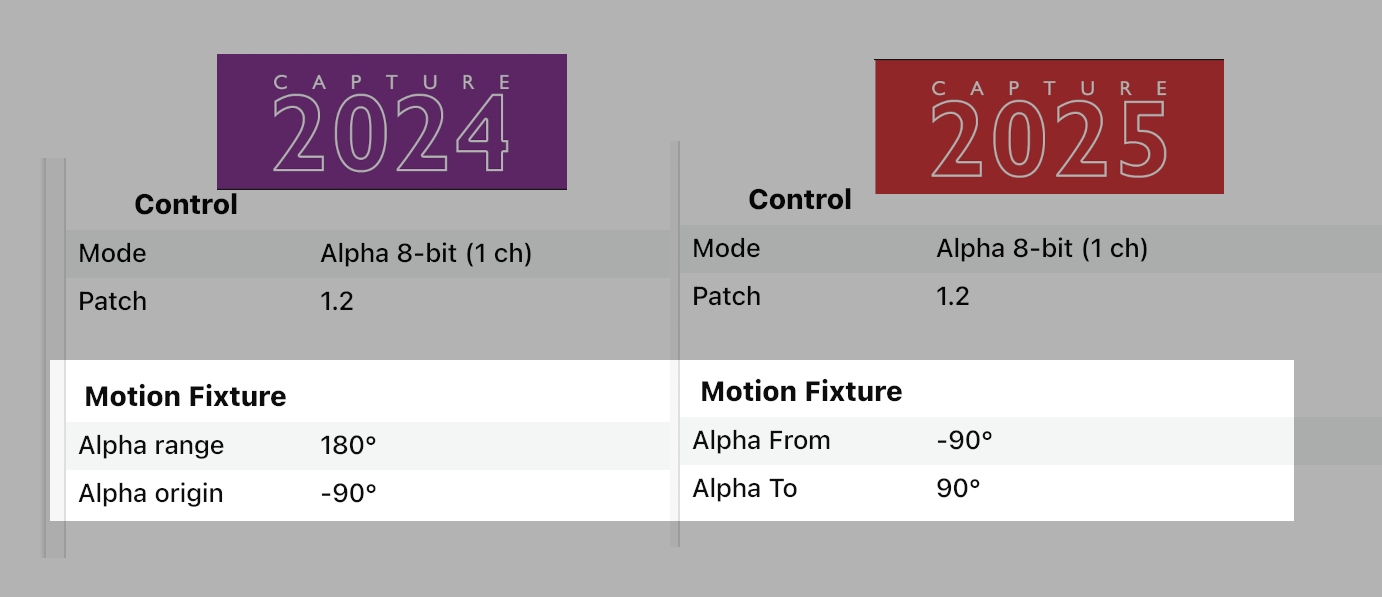
Opening a project that was created with version 2024 or older, where the Range and Origin property were available, the Alpha From value will inherit the Origin and the Alpha To value will add the Origin to the Range. 180º + (-90º) = 90°
LIMITATION: Although you can link DMX Movers and Rotators together to create more complex movements, you can’t have more than 20 units in the same chain.
18.3.12 Motion Construct
Motion constructs are used with tracking protocols. Each motion construct represents a trackable object. Associate the Motion Fixture property of objects with a motion construct to link them with the tracking data.
18.3.13 Report Item
Report items are widgets that make it possible to add equipment and information to reports.
The Section property decides whether the report item’s information sorts under Fixtures, Accessories, Trusses, Cables or Other. When Other is chosen, the Other type can be used to add more specific information about what type of equipment is specified.
The Name property can be used to identify the specific type of item.
Since Report items have multiple uses, only the ones with the Channel count set to anything above 0 can be patched.
The Multiplier property specifies how many items are specified.
The Rating and Weight properties specify the rating and weight of one item.
You can group the Report item with an object or a symbol. The icon will disappear, but it can become visible again in a specific view, if you enable hidden objects on that view.
18.3.14 Rigging Point
Rigging points are symbols with a special meaning. They can be listed and counted in reports as well as show position information in plots (when the Show coordinate property is set to Yes).
18.3.15 Sling
Slings represent tensile load bearers - typically ropes, wires or chains. They can be listed and counted in reports as well as show position information in plots (when the Show coordinate property is set to Yes).
Slings are an important part of the integration with Production Assist.
Double click on the endpoints of a sling to move them.
The Load property is freely editable and represents the tensile force on the sling. It is shown in the sling’s annotation. It can be updated automatically from structural calculations made using the Production Assist integration.
The Type property can be used to distinguish between different types of slings in reports.
The Show Coordinate property controls whether the position of the sling is shown in its annotation. The way the position is presented can be adjusted using the Coordinate Precision, Coordinate Unit and Coordinate Style properties, which also controls the appearance of the Coordinate column in reports.
18.3.16 Smoke Machine
Smoke machines are symbols with a special meaning. They can be listed and counted in reports.
18.3.18 Smoke
Smoke boxes are widgets that represent an area of atmosphere. All new projects contain an auto sizing smoke box by default. When selected, a smoke box is shown as a grid box.
Typical applications of more than one smoke box include denser smoke on stage in an arena with otherwise thin haze as well as localized fog situations such as heavy fog or fog behind a glass.
Limiting smoke to the area around the stage also helps avoid problems with beams pointed towards the audience over-saturating the visualisation.
Control the overall amount of smoke in a smoke box using the Density property. You can also adjust the Variation from perfect haze to puffy clouds. Edge softness adds a soft edge to smoke boxes.
Smoke boxes are animated in real-time and the speed of the animation is controlled through the Speed property. This property is shared by all smoke boxes.
Smoke can also be patched to DMX. A smoke box can be patched by drag and dropping it in a DMX universe view like any fixture, or by assigning an address to the Patch property in the Design tab. See Appendix A for details on the DMX channel layout.
18.3.19 HDRI
HDRIs are widgets that allow loading HDR images for environmental lighting. An HDRI provides a backdrop to the environment and more interesting ambient and specular lighting.
HDR images loaded must be in the EXR format.
The location of an HDRI widget is irrelevant to the placement of the panoramic effect as it always follows the camera. The panoramic effect can be oriented using its Rotation property.
HDR images are not calibrated to a known level of illumination. The Intensity property controls the overall intensity of the HDRI. The Lighting Intensity property controls the intensity of the lighting from the HDRI, relative the Intensity property.
The Blur property controls the sharpness of the panoramic effect.
Only one HDRI widget can affect a view at the time. If multiple HDRI widgets are present, only one of them will be used.
18.3.20 Reflection Plane
Reflection planes are widgets that assist the rendering engine in the creation of secondary reflections.
When placed and carefully aligned with flat surfaces to which materials with high smoothness have been assigned, a mirror-like effect can be achieved.
The Width and Depth properties control the size of a reflection plane.
18.3.21 Focus Plane
Focus planes are widgets that provide visual guidance and illuminance information when focusing fixtures.
When selected, a focus plane is shown as a grid. When in Focus mode in a live view, all focus planes are shown by default and it is possible to choose between hiding them or showing them either as grids, solid white planes or as illuminance heatmaps.
The Width and Depth properties control the size of the focus plane.
The Grid width and Grid depth properties define the grid spacing of the focus plane.
The Heatmap min and Heatmap max properties define the illuminance levels in lux indicated by the focus plane when shown as a heatmap.
18.5 Objects
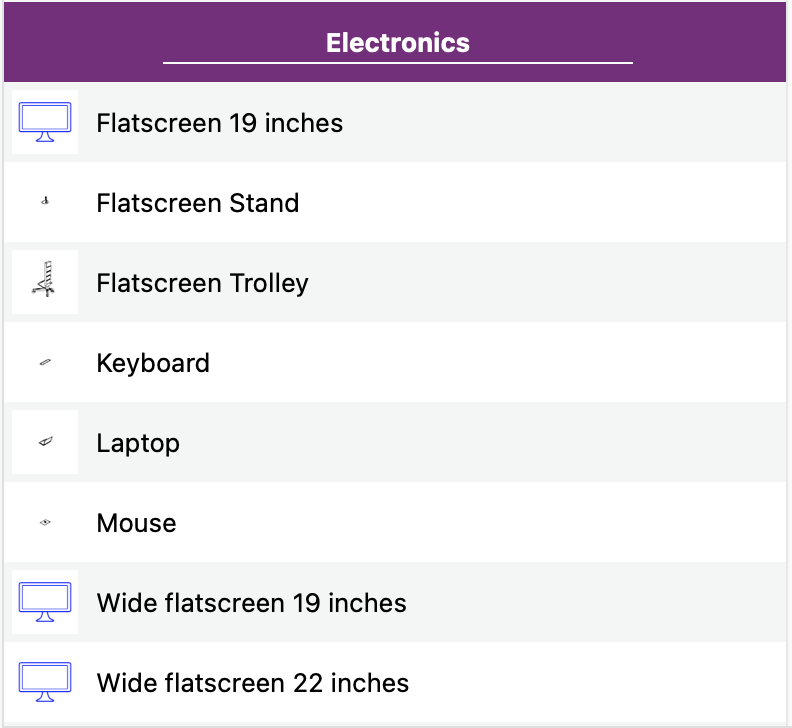
In this category you will find a comprehensive list of objects (adjustable or not) sorted by type. Do note that objects with icons in blue are adjustable, whereas objects with icons in black can’t have their size changed.
18.6 Materials
This category contains a list of materials sorted by type that you can drag and drop on any object. Since library materials are not editable, you will need first to duplicate them, in case you need to make adjustments. You can do so in the Materials category under the Design tab where all the materials used in the project are listed.
18.7 Truss
This category contains a list of truss parts both static and dynamic, sorted by manufacturer. The filtering mechanism on the right-hand side is designed to help you find the truss part you are searching for faster. Dynamic truss parts are automatically generated according to their dimensions. Static truss parts are manually drawn by our Library department team.
18.8 Fixtures
Fixtures are objects that represent real-life lighting devices, including their properties and parameters.
This category contains a list of fixtures sorted by manufacturer. The filtering mechanism on the right-hand side is designed to help you find the fixture you are searching for faster.
18.8.1 Fixture Properties
What follows below is a description of a fixture’s unique properties as seen in the Selected Items category of the Design tab. Double click or press Enter, in order to type new values on each field.
18.8.1.1 Fixture
Make The fixture’s manufacturer is displayed here. This property is not editable.
Name The name of the fixture - as specified by the manufacturer - is displayed here. This property is not editable. The name of the fixture can be visible in reports and the Symbol key in plots.
Version The number displayed here is the library version of the specific fixture and it is not editable.
Weight The weight of the fixture - as specified by the manufacturer - is displayed here. This property is not editable. The weight of the fixture can be visible in reports.
Channel allows you to type the channel of the fixture manually. If you have already added channel information for the specific fixture in the Fixtures tab or in the Fixtures Details window, it will be displayed here.
Groups If you wish for the fixture to be part of a fixture group, type the number of the group here. If you have already added the fixture in a group on the Fixtures Group category, it will be displayed here. Another way to add a fixture in a group is to type the number of the group in the Fixtures tab or in the Fixtures Details window.
Circuit allows you to type the circuit of the fixture manually. If you have already added circuit information for the specific fixture in the Fixtures tab or in the Fixtures Details window, the circuit will be displayed here. This information can be displayed both in plots and reports.
Purpose allows you to type purpose information for the fixture manually. If you have already added purpose information for the specific fixture in the Fixtures tab or in the Fixtures Details window, it will be displayed here. This information can be visible in reports, but not in plots.
Console Identifier This number identifies the fixture in the linked console. It is assigned by the linked console and thus not editable.
External Identifier can be used to identify the fixture in exchanges with external applications. A possible use would be with fixture data import or export.
Note allows you to type a note for the fixture manually. If you have already added a note for the specific fixture in the Fixtures tab or in the Fixtures Details window, it will be displayed here. This information can be visible in reports, but not in plots.
18.8.1.2 Control
Mode opens a dropdown list with all the available modes for the selected fixture.
Patch allows you to type the address of the selected fixture manually.
Correction allows you to edit the behaviour of various parameters. You wil be directed to the Corrections tab and once a correction has been created, it can be applied to all fixtures of the same type within the project.
Invert Pan reverses the pan parameter’s behaviour.
Pan Range applies to fixtures that support multiple pan ranges defined by the manufacturer in the fixture’s Settings Menu.
Limit Pan Start restricts the pan movement of the fixture.
Limit Pan End restricts the pan movement of the fixture.
Invert Tilt reverses the tilt parameter’s behaviour.
Tilt Range applies to fixtures that support multiple tilt ranges defined by the manufacturer in the fixture’s Settings Menu.
Limit Tilt Start restricts the tilt movement of the fixture.
Limit Tilt End restricts the tilt movement of the fixture.
Simulate Focus is the property that controls whether or not the focus will be simulated on the Live view.
18.8.1.3 Lighting Fixture
Depending on the fixture type, the properties listed under the Lighting Fixture Group may vary. Furthermore, only a selection of wheels is listed below, since their specific names also depend on the fixture type.
Optics informs you of the fixture’s lamp, field angle and the output in lumens. If the specific fixture supports multiple lenses or lamps, these will appear in the form of a drop-down list. In the case of video projectors the throw ratio and the output in lumens is displayed.
Throws Light enables or disables the beam of the fixture. Although not always necessary, it is recommended to turn off this property when the fixtures are pointing directly to the camera, in order to help performance. Please see Performance Tuning for more information.
Spill Lighting enables or disables the spill of a beam. More obvious on soft edge fixtures, like Fresnels for example.
Filters applies to conventional fixtures. If a filter from the library has been dropped onto the fixture, the information will be displayed here.
Gobos applies to conventional fixtures. If a gobo from the library or a custom gobo has been dropped onto the fixture, the information will be displayed here.
Internal Accessory applies to conventional fixtures. You can choose from the drop-down list if the fixture will have an iris or a gobo rotator for example. The accesory will also be listed in equipment reports.
External Accessory applies to conventional fixtures. You can choose from the drop-down list if the fixture has a top hat for example. The accesory will also be listed in equipment reports.
Gel String shows all the filters that are included in a scroll. You can customize the string by double-clicking on any colour. For more information on how to edit a gel string see Frame Lists.
Color Wheel shows all the filters that are included in a colour wheel. You can customize the wheel by double-clicking on any colour. For more information on how to edit a colour wheel see Frame Lists.
Gobo Wheel shows all the gobos that are included in a gobo wheel. You can customize the wheel by double-clicking on any gobo. For more information on how to edit a gobo wheel see Frame Lists.
Animation shows all the gobos that are included in a animation wheel. You can customize the wheel by double-clicking on any gobo. For more information on how to edit an animation wheel see Frame Lists.
Prism shows the prisms contained in the fixture. You can customize the prism by double-clicking on it. For more information on how to edit a prism see Frame Lists.
Media is a property available only to video projectors and allows you to assign a media player to the projector.
Display Test Card is a property available to video projectors only. A test card can be displayed instead of media.
18.8.1.4 Plot Symbol
Symbol controls which symbol is used on the plot for the selected fixture.
Symbol Scale controls the scale of the symbol.
Symbol Usage controls which views the symbol actually appears in.
Color by filter sets the fixture color to match the gel filter it has.
Focus allows text to be placed in front of the fixture and indicate where that fixture is focused. Ie, drums.
Direction snap is set to 30 degrees by default, this property controls the direction the fixture is facing on the plot.
Show Optics controls whether or not the plot displays the optical information of the fixture.
Show Wattage controls whether or not the plot displays the wattage information of the fixture.
18.8.1.5 Plot Annotation
Visible controls the visibility of any annotation, like channel number or patch, in Plot View and plots.
Style affects Front and Centre annotations only. Transparent is the default setting, but if you change it to Opaque, any filter or gobo information for example will display a solid box behind the text just like in tail annotations.
18.8.2 Orientation reference arrow
When you drop a fixture into the project, by default the lens is pointing downwards. As if you have just rigged a light on a bar or truss.
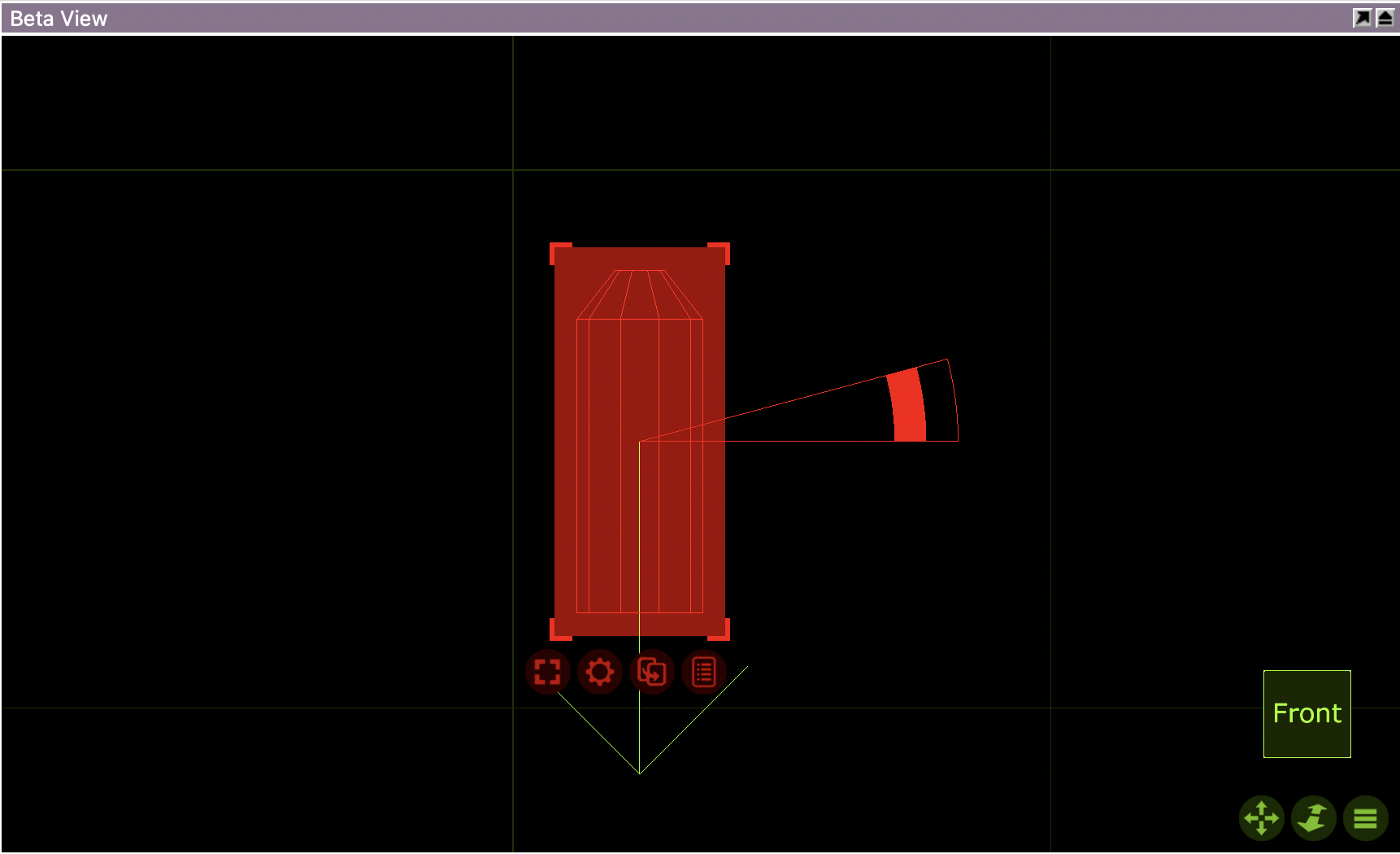
When selected, views in Wireframe mode will display a yellow arrow as an extra visual aid of the fixture’s orientation.
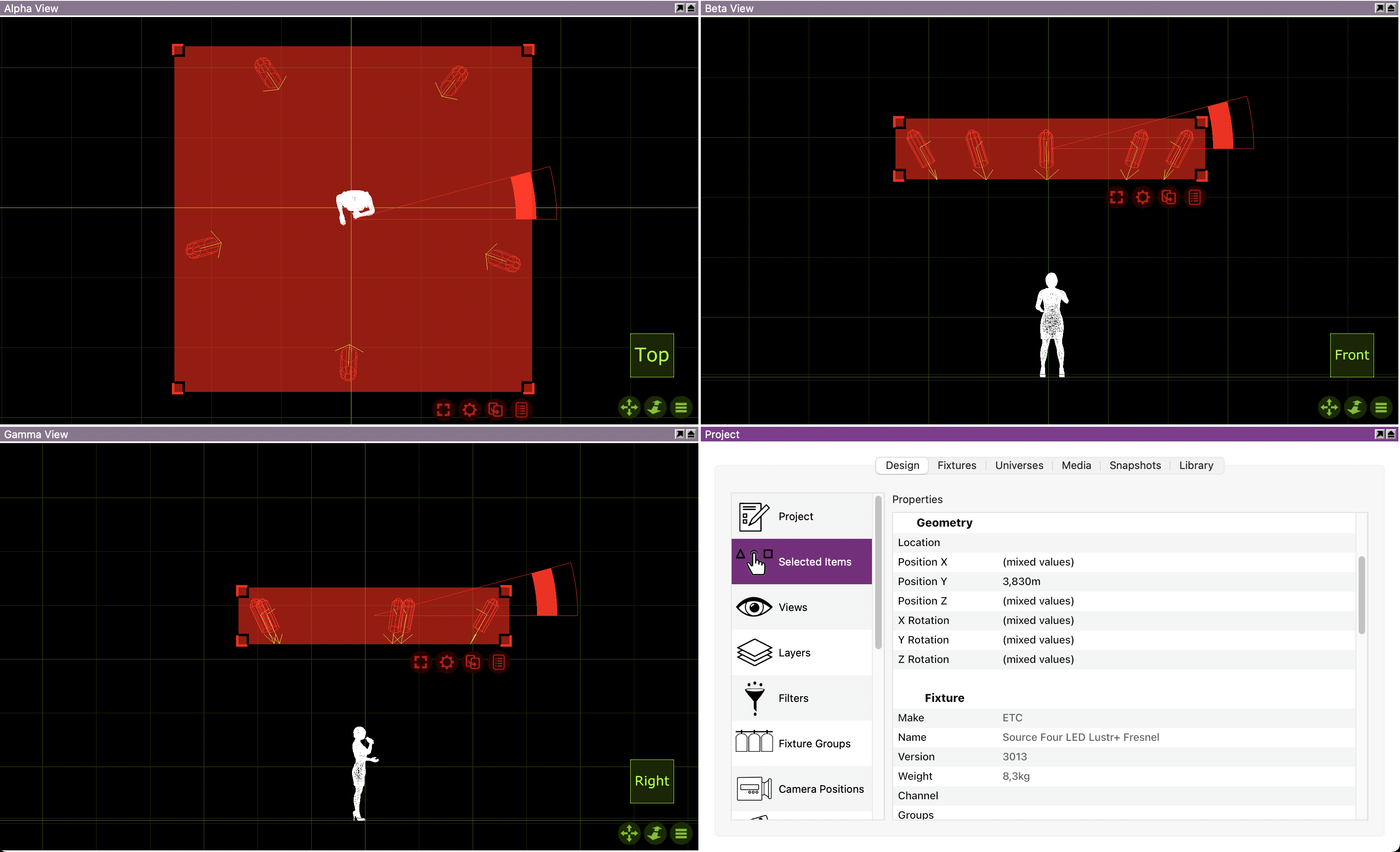
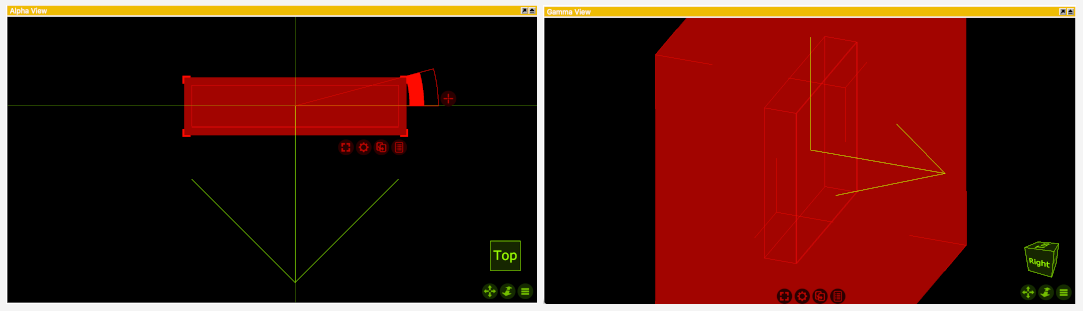
In the case of moving heads, the arrow, when viewed from above or from the side, is pointing to the opposite side of the display.

In the case of video panels, the arrow will help you identify the light-emmiting face of the panel.
18.9 Fixture Symbols
This category contains a list of fixture symbols sorted by manufacturer. The filtering mechanism on the right-hand side is designed to help you find the symbol you are searching for faster. You can either replace the original symbol of a fixture with something from this category, or add a symbol as a mere graphical representation of a fixture.
18.10 Symbols
This category contains a list of symbols sorted by type. The filtering mechanism on the right-hand side is designed to help you find the symbol you are searching for faster. You can add any of the symbols as a report item, if you need to make your plot more informative on items other than fixtures.